Never miss a 2x/3x task, mist or glove during PK
How the bonus task, mist and glove cards appear in the PK layout, and which widgets show them on stream. A step-by-step guide.

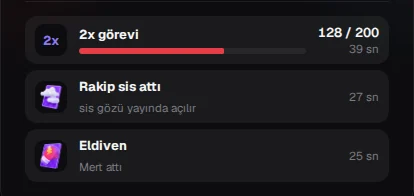
The most important moments of a PK often last only a few seconds: a bonus task opens, the rival sends mist, someone uses a glove. Catching all that on a phone screen is hard. The PK layout in TTStreamer's live panel shows these moments on separate cards, so you can focus on your stream without missing anything.
The PK layout opens by itself
When a PK starts, the Live cockpit switches to the PK layout automatically. You can also choose it manually. At the top you see the live score (the team score in team matches), the remaining time, and the rival's photo, name and @username.
Both sides' TikTok league badges and the match's estimated league points appear here too, so you know how much the match matters before it gets going.
The 2x/3x bonus task
The bonus task card follows TikTok's screen step by step:
- Announcement: the card shows the task as soon as it opens.
- Progress: you follow how far along the task is.
- Result: the card shows whether the task was won or missed.
Telling your viewers the moment a task opens often changes the outcome. With the card in front of you, you can call for support at exactly the right second. The card follows what happens on TikTok's screen; when the task opens on TikTok, it opens in the cockpit too.
The mist card: even when scores are hidden
The mist card shows who sent the mist and how many seconds are left. The key difference: when mist hits, TikTok hides the scores on screen, but the cockpit keeps showing the real score of both sides.
That way you know where the match really stands while the mist lasts. If you are ahead you can stay calm; if you are behind you can ask your viewers for support openly.
If you want to share the same information with your viewers, add the mist eye widget to your scene. If you do not, the real score stays in your cockpit only.
The glove card
The glove card shows who sent the glove and the remaining seconds. Knowing which side has the glove and how long it lasts helps you plan your moves in the final seconds.
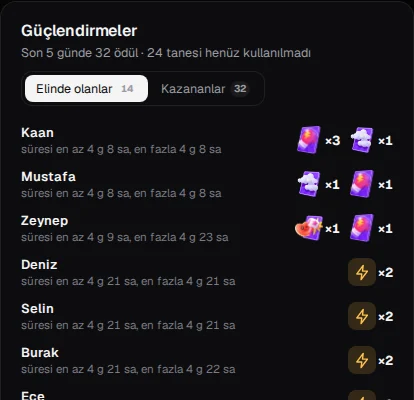
If you wonder which viewers hold mist, gloves and other power-ups, read our PK power-ups article.
What viewers see: PK widgets
The cockpit cards are for you. For your viewers, add PK widgets to your scene in the Overlay studio:
- PK win counter: wins, draws, losses and your series.
- 2x/3x bonus task: the task status on stream.
- Mist eye: the real scores when mist hits.
- Glove signal: an alert while a glove is active.
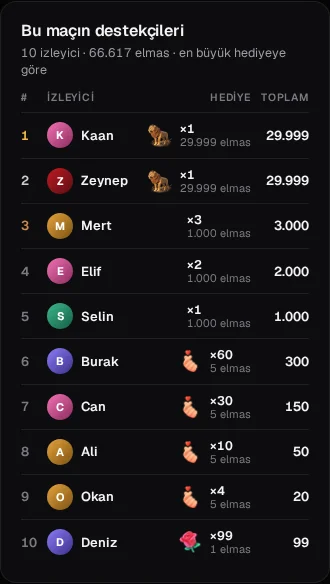
- Snipe video and top gifters.
A widget with no data stays hidden on stream. When there is no PK, no empty box or fake number appears. The ready PK scene template adds several of these widgets at once.
After the match: summary and a new rival
When the PK ends, the match summary shows the score difference, your wins and losses in this stream and your last matches as W/L badges. It tells you what shape you are in before the next match. To show your series to viewers, use the PK win counter widget.
Looking for a new rival? Check the PK listings in the community. A listing states the day, time, match type (single, series or team), diamond range and a short note, and you can allow only verified accounts to apply. A listing stays open for 24 hours, you can have one open listing at a time, and accepting an application opens a direct message with the other streamer.