Read your rival's chat during PK: see the other side of the match
Opponent chat shows the chat of the other rooms in a PK as one read-only list, and closes by itself after the match.

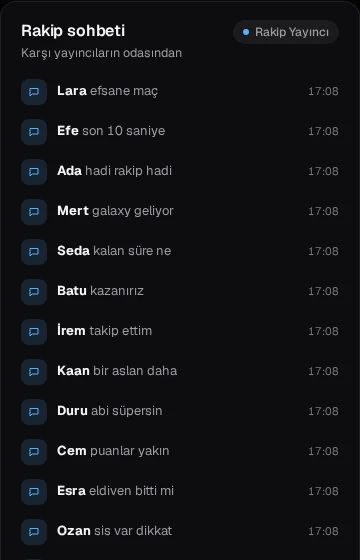
During a PK you normally see only your own chat. Yet the course of a match is often decided by the mood on the other side: what are the rival's viewers saying, are they preparing a move, have they given up? Opponent chat in TTStreamer's live panel brings the other side of the match in front of you.
What is opponent chat?
Opponent chat is a feed that shows the chat of the other rooms in the match during a PK. In a one-on-one match you see your rival's chat; in team matches you see the chat of up to three other rooms in the match. Messages from these rooms are merged into a single list, so you do not jump between separate windows.
The feed is read-only. You cannot write to the rival room from here, and nothing interferes with the rival's chat in any way. Opponent chat only gives you information.
When does it open and close?
When a PK starts, the Live cockpit switches to the PK layout automatically, and opponent chat works as part of that layout. The feed closes by itself 3 minutes after the match ends. Those 3 minutes let you see the post-match talk as well; after that, the cockpit focuses back on your own stream.
There is no need to type the rival's username; the panel finds the rooms in the match by itself. When a new PK starts, the feed opens again with that match's rooms.
What is it good for?
You can use opponent chat for a few practical purposes:
- Reading the mood: if the rival's viewers are excited, a big move may come in the final seconds. You can prepare your own viewers for it.
- Choosing the right moment: if the other side goes quiet, that may be the most effective time for your call for support.
- Finding your way in team matches: because several rooms' chats sit in one list, you follow what is happening in a team match from one place.
- Connecting after the match: in the 3 minutes after the match you see the other side's reaction, and you may want to thank them for a good match.
What sits next to it in the PK layout?
Opponent chat makes most sense when read together with the rest of the PK layout. On the same screen you see:
- The live score (the team score in team matches) and the remaining time.
- The rival's photo, name and @username.
- Both sides' TikTok league badges and the match's estimated league points.
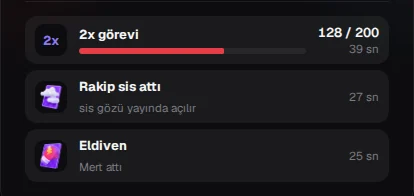
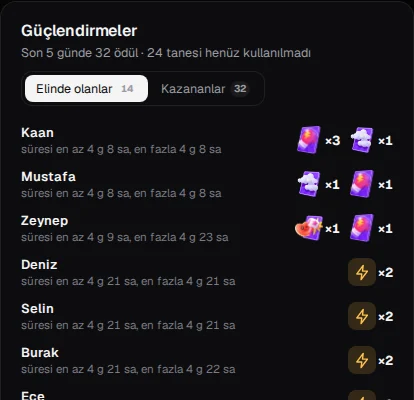
- The bonus task, mist and glove cards. Even when mist hits, the real score of both sides stays visible.
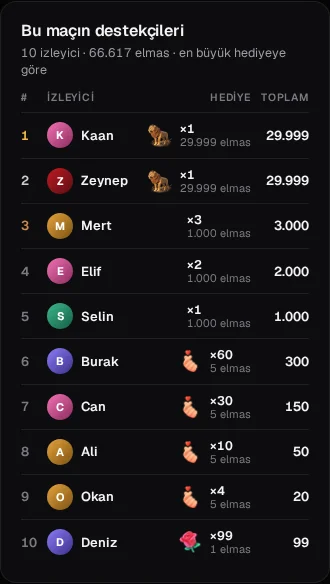
- The supporters of this match.
For example, during mist you can look at the real score and read the mood in the rival's chat to understand where the match truly stands. We cover these cards in our PK tasks, mist and glove article.
Find new rivals
Opponent chat is for the match itself; arranging matches is the community's job. In the community's PK listings you state the day, time, match type (single, series or team), diamond range and a short note, and you can allow only verified accounts to apply. A listing stays open for 24 hours, and you can have one open listing at a time. Accepting an application opens a direct message with the other streamer.
Posting in the community requires TikTok verification. Links, phone numbers and "follower selling" patterns are blocked, and content that receives 3 reports is hidden. That keeps listings between real streamers.