Connect TTStreamer to TikTok LIVE Studio in three steps
The whole setup, from connecting your account to your first test alert. No OBS needed; you can be live in a few minutes.

Before you start
You need two things: TikTok LIVE Studio installed on your computer and a free TTStreamer account. There is no separate streaming program to install and no OBS; TTStreamer works through LIVE Studio's own Link source.
The whole setup runs step by step on the Setup page of the panel. Once you have completed the three steps below, future streams only require opening LIVE Studio and going live. The panel is available in Turkish, English and Arabic.
1. Connect your account
Open the Setup page in the panel and either type your TikTok username or sign in with TikTok. We never ask for your TikTok password at any step.
For accounts verified with TikTok, the live panel is locked to your own username, so your panel only listens to your stream. If you type a username by hand, the panel follows the stream of the account you entered. In the long run we recommend verifying with TikTok; some areas, such as PK listings in the community, also require a verified account.
2. Build your scene
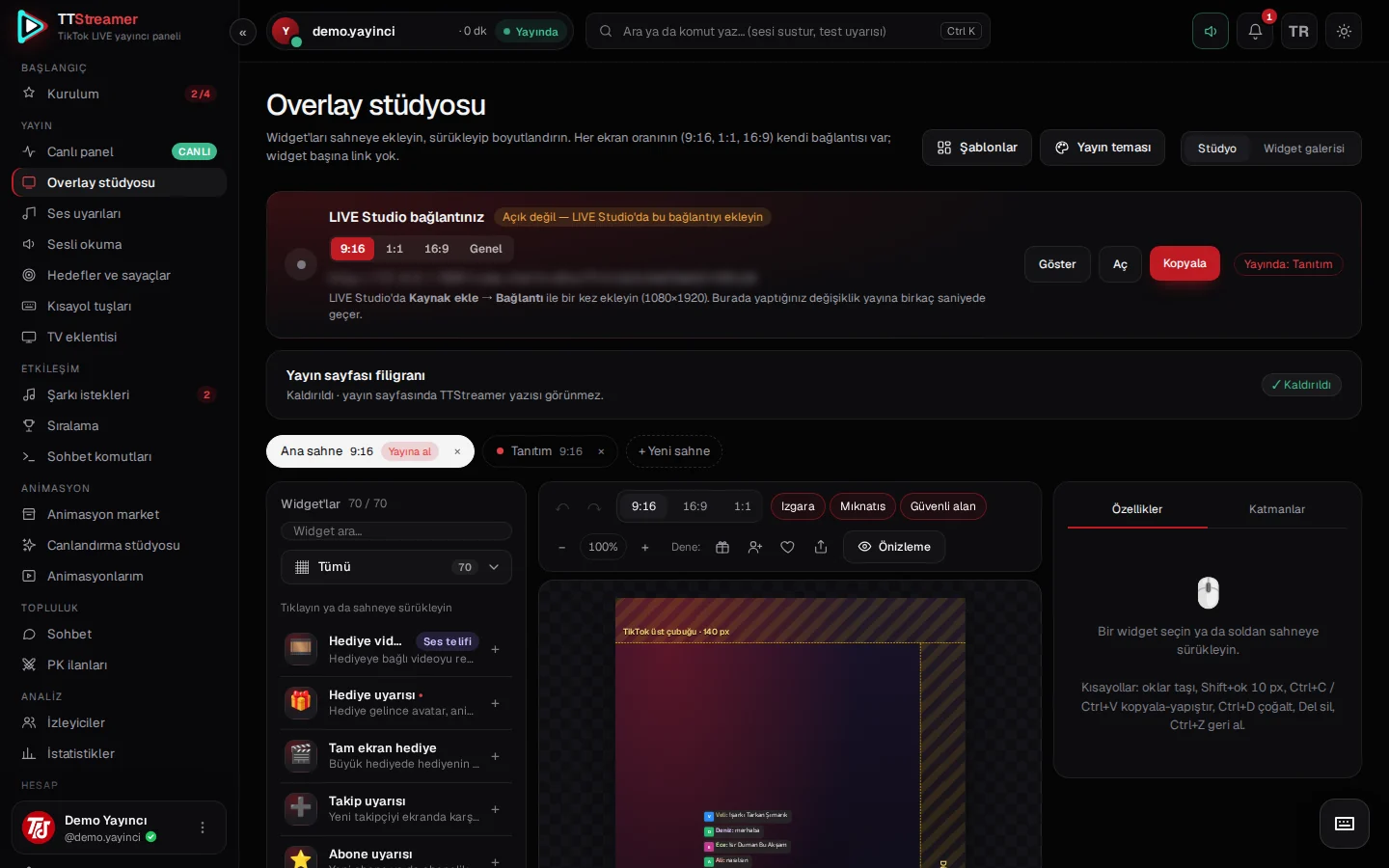
In the Overlay studio, press the Templates button and pick a ready-made scene: PK scene, Chat scene, Gift hunt, Game night, Subathon or Celebration moment. A template is added as a new scene, so your existing scenes stay exactly as they are. If you change your mind, Ctrl+Z undoes it.
You can also start from an empty scene and drag widgets in from the library on the left. Widgets are placed so that TikTok's top bar, the buttons on the right and the comment area at the bottom stay clear; the safe-area guide marks these zones with yellow bands.
We describe every template in detail in our ready scene templates article.
3. Add the link in LIVE Studio
On the "Your LIVE Studio link" card at the top of the studio, choose your stream's aspect ratio (9:16 for a vertical stream) and press Copy. Then, in LIVE Studio:
- Open the Add source menu.
- Choose the Link source and paste the address you copied.
- Leave the size at 1080 × 1920 for a vertical stream.
You only do this once. Any change you make in the studio later reaches the stream within seconds; there is no need to add the link again.
Send a test alert
The panel detects by itself when the link is opened in LIVE Studio, and the connection status appears in the top strip of the live panel. Then press the Test alert button: if a gift alert appears in the LIVE Studio preview, your setup is complete.
Test alerts are not written to your stream totals. You can test as often as you like before going live; your diamond, follow and like counts are not affected.
Common questions
- A widget does not appear. A widget with no data stays hidden on stream; we never put fake numbers on screen. Send a test alert, or check again after your stream has started.
- The image is cropped or too small. Make sure the source size in LIVE Studio matches the ratio you picked: 1080 × 1920 for 9:16.
- Landscape or square streams. For 16:9 and 1:1, copy the separate link from the matching tab in the studio. Each aspect ratio has its own link.
- There is faint text at the bottom of the stream. On free use, a faint "TTStreamer" text appears at the bottom center of the stream page. You can remove it with a one-time payment of 5.99 USD. Payment is made by card on Stripe's secure checkout page, and your card details never reach us. See the Pricing page for details.
Once setup is done, the next step is getting to know the live panel. Our Live cockpit article explains where each piece of information sits while you are on air.