The Live cockpit: your whole stream on one screen
The Live cockpit gathers stream time, viewers, the thank-you queue, the event feed, the preview and the control center on one screen.


During a live stream you follow many things at once: who sent a gift, who you have not thanked yet, what the chat is saying, which scene is on air. The Live cockpit in the panel brings all of this onto a single screen. In this article we walk through its sections from top to bottom.
The top strip: your stream's pulse
The strip at the very top shows stream time, current viewers and your diamond, like, follow and share totals. Next to each number you see the increase over the last 10 minutes, so you can tell at a glance whether the stream is picking up or slowing down.
The same strip holds the connection health chips: TikTok, the LIVE Studio link for each aspect ratio, and sound. If an alert is not reaching the stream, this is the first place to look.
Thank-you queue and event feed
The thank-you queue lines up gifts of 99 diamonds or more and subscriptions one by one. Even in the busiest moments nobody is skipped: you thank people in order and work through the queue.
The event feed merges gifts, chat messages, follows and commands into one list. Use the filters at the top to see only what you need:
- All: everything happening on stream, in order.
- Gift, Chat, Follow, Command: only events of that type.
Every row has its own actions. You can have a message read aloud or thank the sender directly.
Live preview and scenes
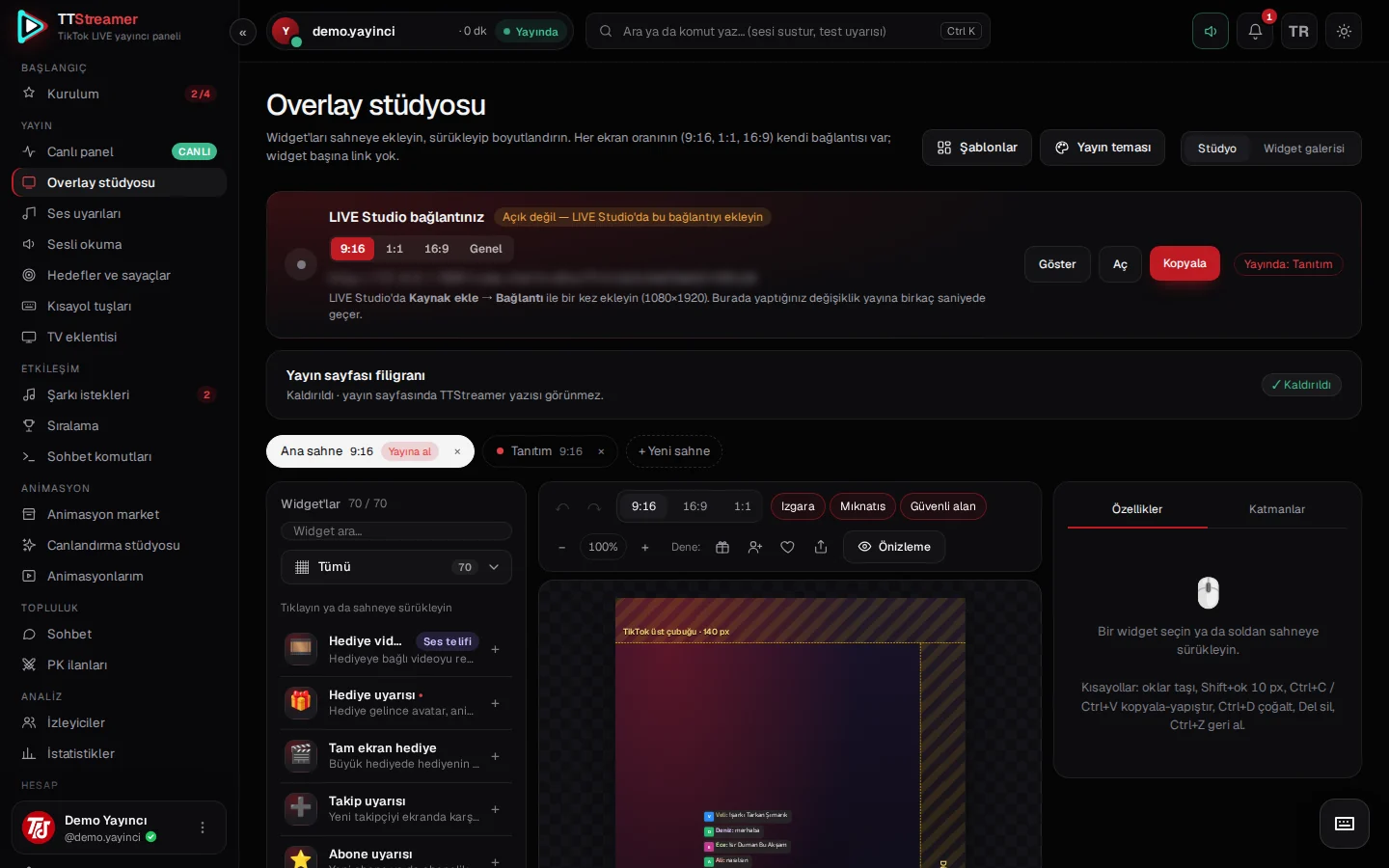
The preview shows exactly what LIVE Studio is showing at that moment. Sound is muted in the preview, so you never hear your stream twice. Ratio tabs switch between the 9:16, 1:1 and 16:9 views.
Click a scene to put it on air. The eye toggles in the layer list show or hide individual widgets, without going back to LIVE Studio.
The last 60 minutes and the control center
The chart summarizes the last 60 minutes: diamonds, viewers, PK periods and gifts of 1000 diamonds or more. It tells you which part of the stream drew the most attention. For example, you can see how the diamond flow changed during PK periods, or when the big gifts arrived, all on the same chart. That helps when you plan your next stream.
Below it, the control center is organized in tabs:
- Sounds: sound alerts and ready-made sounds.
- Thank-you: thank-you settings.
- Reading: text-to-speech for the chat.
- Songs: song requests from the chat.
- Counters: the counters on your stream.
- Hotkeys: actions assigned to your number keys.
For more settings, open the quick settings drawer. If you need silence right away, the Mute all button does it in one tap. If you prefer the keyboard, press Ctrl+K to open the command palette, where you can search, mute sound or send a test alert.
When a PK starts, and on your phone
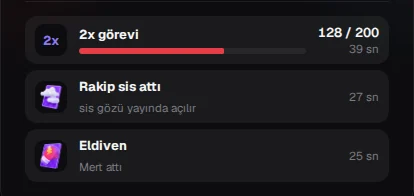
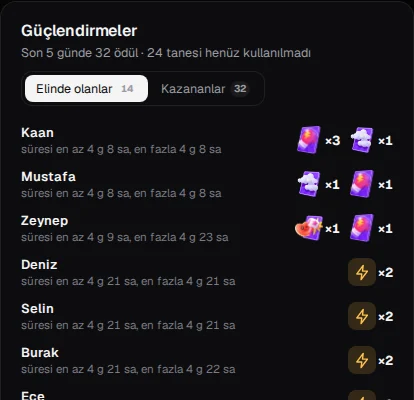
When a PK starts, the cockpit switches to the PK layout automatically. There you see the live score, remaining time, the rival's name and photo, both sides' league badges, the bonus task, the mist and glove cards and this match's supporters. You can also choose the PK layout manually. Details are in our PK tasks, mist and glove article.
Open the cockpit on your phone and it works as a single-column second screen. Keep LIVE Studio on your computer, place your phone next to you and follow the thank-you queue and event feed from there. Because the panel runs in the browser, you simply sign in with the same account on your phone.