Ready scene templates in the Overlay studio: six scenes, one click
Ready scenes for PK, chat, gift hunts, game nights, subathons and celebrations. What each one contains and how to add and edit it.

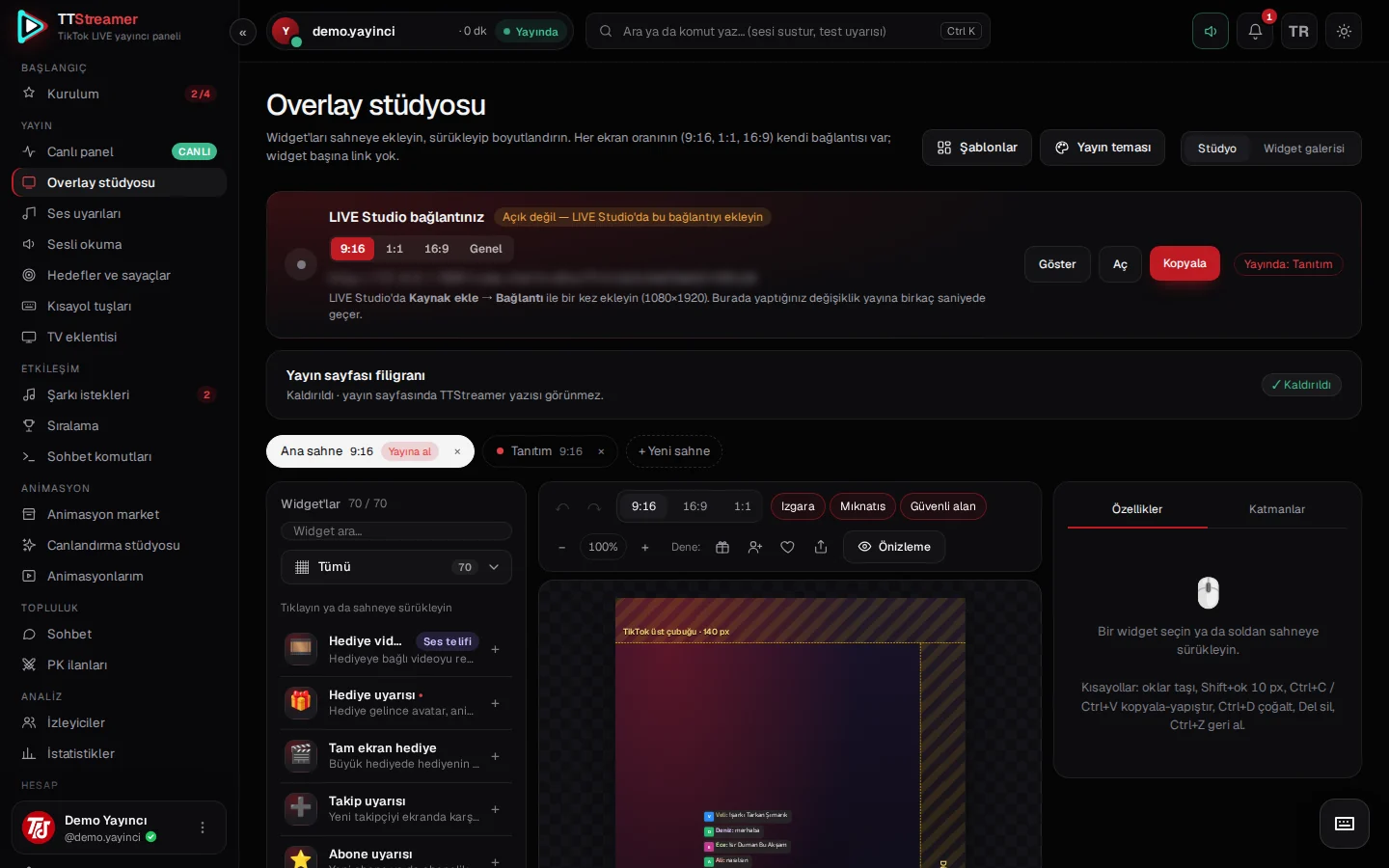
Starting from an empty scene can be inspiring, or it can eat the hours before your stream. The ready templates in the Overlay studio give you scenes with widgets already laid out for common stream types. You start with a template and then adjust it to your own style.
Six ready templates
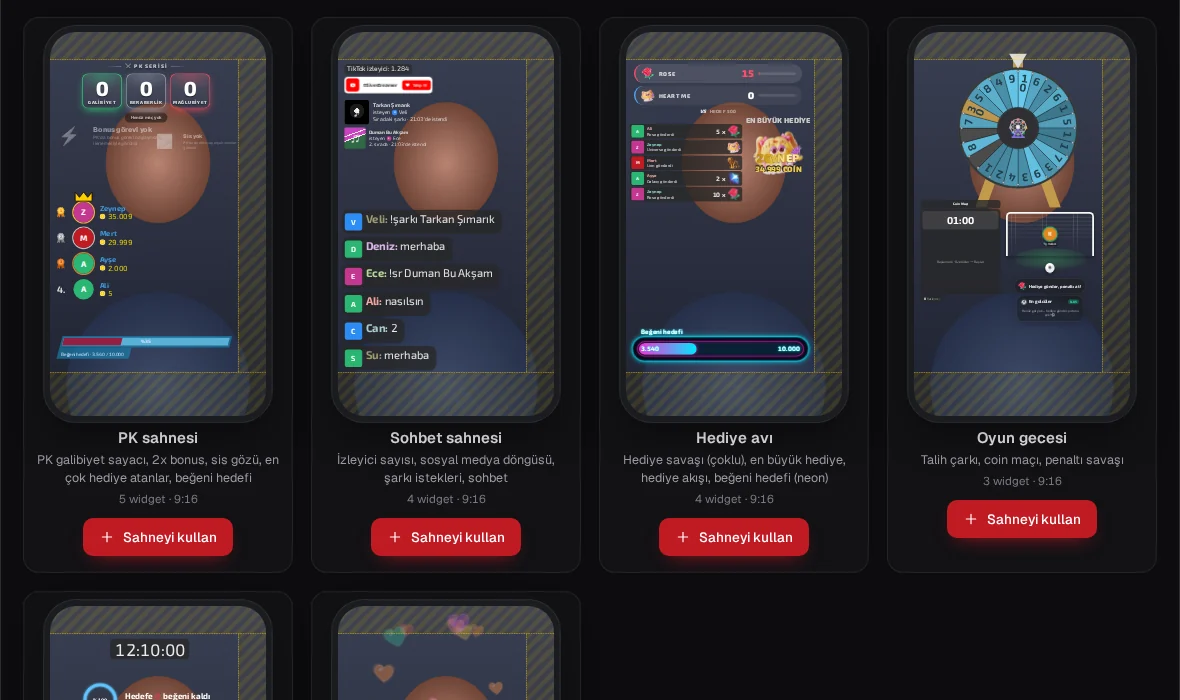
When you press the Templates button in the studio, you see six scenes:
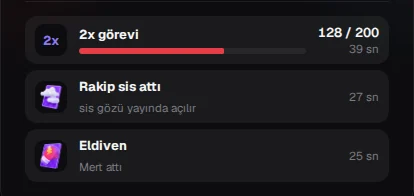
- PK scene: PK win counter, 2x bonus, mist eye, top gifters and a like goal. For PK-focused streams.
- Chat scene: viewer counter, social media loop, song requests and chat. For calm, talk-focused streams.
- Gift hunt: multi gift battle, biggest gift, gift feed and a neon like goal. For streams where gifts take center stage.
- Game night: wheel of fortune, coin match and penalty battle. For evenings when you play games with your viewers.
- Subathon: subathon timer, circular countdown goal, last follower and last gifter. For long streams that gifts keep extending.
- Celebration moment: gift fireworks and a like fountain, full screen. To put on air briefly at special moments.
Song requests come from the chat with the !şarkı, !sr or !song commands and are collected in a queue in the panel. No music service is connected to the panel; you manage the requests yourself.
How to add a template
- Open the Overlay studio and press Templates.
- Choose the template that fits your stream.
- The template is added as a new scene. Your existing scenes stay unchanged.
If you change your mind, Ctrl+Z undoes it. You can have up to 20 scenes in total, so you can add the same template several times for different kinds of streams and edit each one separately.
Make it your own
A template is only a starting point. Drag and drop widgets to move them, add new ones from the library on the left, or remove the ones you do not need.
Keep the safe-area guide on while you arrange things. The yellow bands mark TikTok's top bar, the buttons on the right and the comment area at the bottom. Keep your widgets outside these bands and your viewers will not lose them under TikTok's buttons.
A widget with no data stays hidden on stream. For example, if nobody has followed yet, the last follower box does not show up empty; it appears by itself with the first follow.
Themes and transitions
Apply a stream theme to your scenes with one click: Brand red, Neon blue, Gold or Purple night. A theme changes the widgets' colors together, so you do not have to recolor each widget.
There are four options for switching between scenes: smooth, slide, zoom or no transition. A smooth transition suits a calm chat stream, while slide can work well on a lively game night.
Put the scene on air
During your stream you put a scene on air from the Live cockpit: just click the scene in the preview. The eye toggles in the layer list show or hide individual widgets.
If you would rather keep your hands on the keyboard, assign a scene to one of the number keys, as described in our num-pad hotkeys article. For example, assign the Celebration moment scene to a key and put it on air with a single press when a big gift arrives.
Remember that each aspect ratio (9:16, 1:1, 16:9) has its own link. If you have not added yours yet, our setup guide explains it in three steps.