Num-pad keys instead of a Stream Deck: a hotkey panel on your keyboard
Assign actions such as playing sounds, switching scenes, read aloud and counters to your number keys; no extra device needed.


Hunting for the right button with your mouse during a stream, just to play a sound, switch scenes or mute everything at once, costs time. Many streamers buy a separate key device such as a Stream Deck for this. With TTStreamer you do not need one: the numeric keypad on the right of your keyboard does the same job.
Which actions can you assign?
In the Hotkeys section you assign an action to each number key. Besides the digits, the keypad's /, *, −, +, Enter and decimal keys can be used too. The actions you can assign:
- Sounds: play a sound, run a sound rule, Mute all.
- Read aloud: turn on, turn off, skip the current message, clear the queue.
- Videos: play a video rule or a PK video.
- Scenes and widgets: put a scene on air, show or hide a widget.
- Counters: win counter +1 or −1.
- Subathon: start the subathon and add time.
- Other: test alert, reset poll, skip song and a 60-second live like test.
The list may look long, but starting with the three or four things you do most often on stream is enough. Add the rest over time.
Important limit: the panel tab must be in front
Num-pad hotkeys run in the browser. That is why the keys only work while the browser tab with the panel is in front (focused). Keys pressed while LIVE Studio or another window is in front do not reach the panel.
In practice, two setups work well:
- A second monitor: keep LIVE Studio on one screen and the panel on the other. If you stay in the panel window during the stream, the keys always work.
- Your phone: open the cockpit on your phone and it works as a single-column second screen, so you can use its buttons when the keys are out of reach.
An example layout
Grouping your number keys makes it easier to remember what each one does mid-stream. For example:
- Top row (7, 8, 9): your three most used sounds.
- Middle row (4, 5, 6): scenes, such as the chat scene, the PK scene and the celebration moment.
- Bottom row (1, 2, 3): read aloud on/off, skip message, clear queue.
- 0: Mute all. Keep your emergency key in the same place every time.
This is only a suggestion; adapt it to your stream. If you mostly do PK, you could give the middle row to PK videos and the win counter.
Test before you go live
Whenever you set up a new layout, test the keys before your stream. The test alert action is ideal for this, because test alerts are not written to your stream totals. With the 60-second live like test you can also check how like-based widgets look on stream.
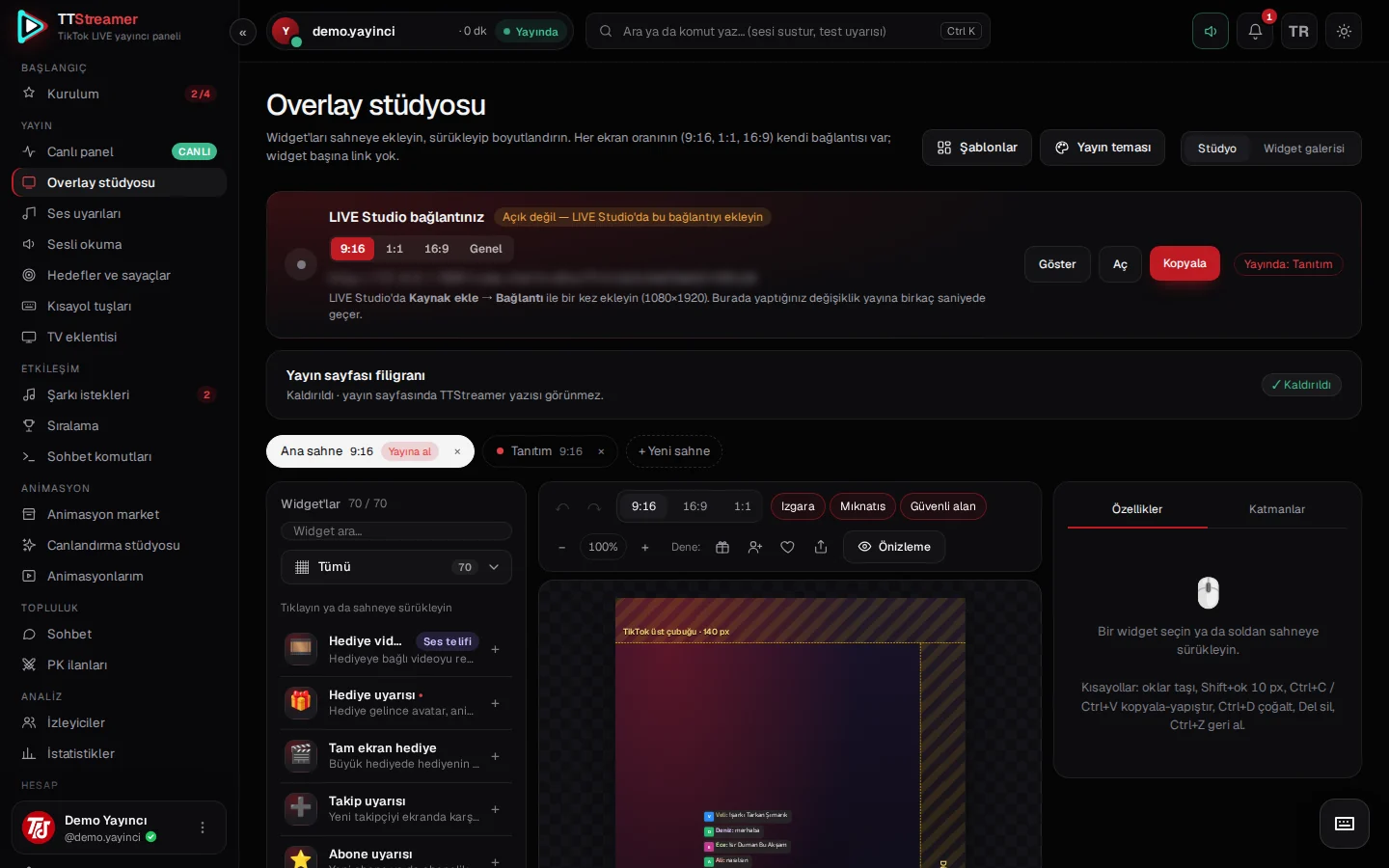
Scenes need to be prepared in the studio before you assign them to keys. For a quick start with ready scenes, see our ready scene templates article, and for reading actions, our text-to-speech settings article.
In short
Number keys are the shortest way to run your stream from the keyboard without buying an extra device. Keep the panel tab in front, start with a few core actions and test the layout before you go live. TTStreamer is free, and there is no extra charge for using hotkeys.